Blackout Workspace: Ergonomics and Power Guide
Short answer
To maintain productivity and health during a power outage, a remote worker needs four core items: a laptop with a healthy battery, a 12V mini UPS for the Wi-Fi router, a battery-powered LED desk lamp, and a high-capacity power bank. Combined with strict ergonomic lighting practices and offline software workflows, this setup ensures 4 to 8 hours of safe, uninterrupted work without grid power.
The core challenge of working in the dark
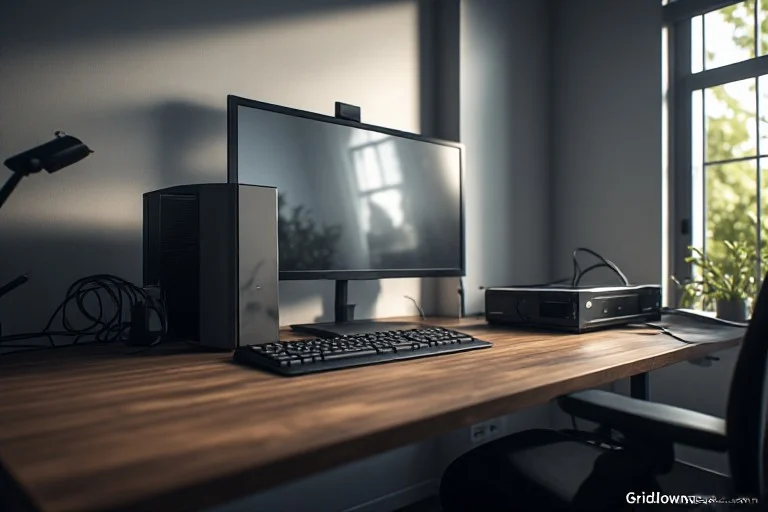
Working from home during a blackout introduces two major problems: loss of connectivity and severe visual strain. Relying solely on a laptop screen in a pitch-black room forces your pupils to constantly adjust between the bright display and the dark surroundings. This causes rapid eye fatigue, headaches, and a significant drop in concentration within the first hour.
Preparing a dedicated "blackout workspace" transforms a stressful grid failure into a manageable routine, protecting both your health and your deadlines.
Essential hardware for an autonomous workspace
1. A Laptop (Not a Desktop)
A laptop is the cornerstone of blackout productivity. Its built-in battery provides 2 to 6 hours of runtime, and its low power draw (typically 30-60W) makes it easy to support. For help sizing backup power for your specific devices, see our guide on how to calculate your home office power needs.
2. A 12V Mini UPS for the Router
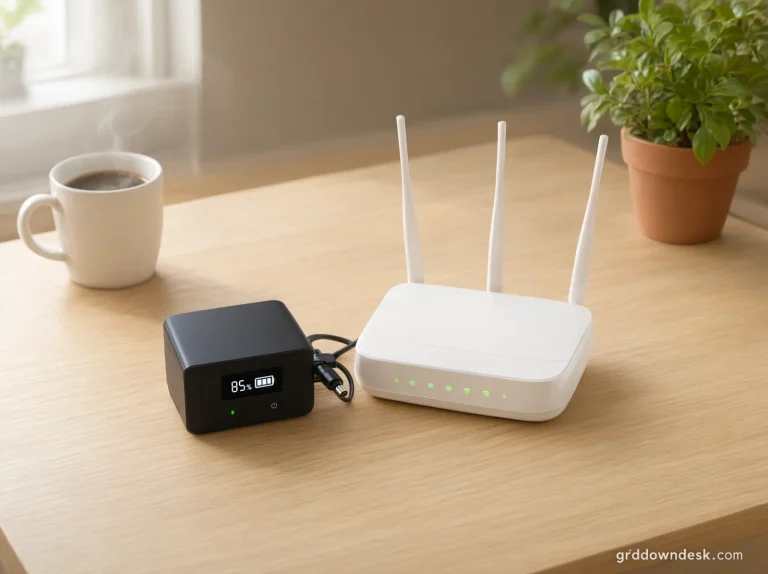
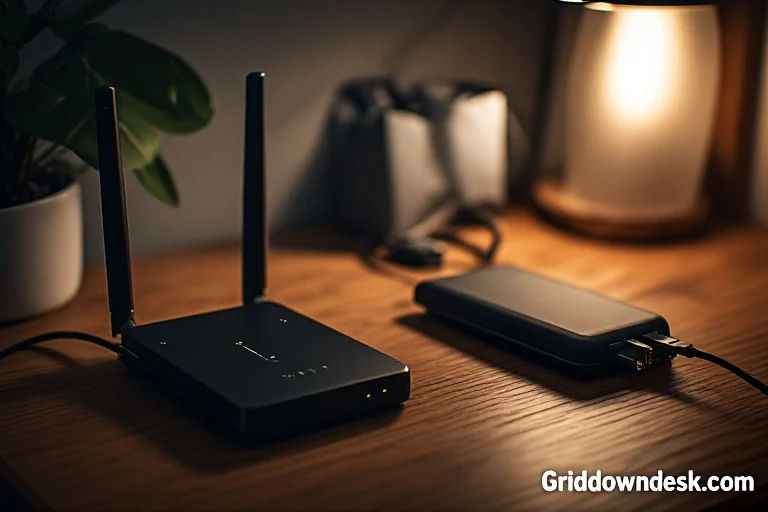
If your laptop is running but your router is dead, you have no internet. A standard home UPS is overkill and inefficient for this task. A dedicated 12V mini UPS connects directly to your router's DC port, bypassing the energy-wasting AC inverter. A 10,000 mAh to 20,000 mAh mini UPS will keep a standard router alive for 3 to 6 hours. Learn more in our guide on keeping Wi-Fi on during a blackout.
3. Battery-Powered LED Desk Lamp
Relying solely on your laptop screen causes severe eye strain. A rechargeable LED desk lamp with adjustable color temperature provides essential ambient and task lighting. Look for models with a built-in battery that can also function as a power bank to charge your phone in a pinch.
4. High-Capacity Power Bank (20,000 mAh+)
Your smartphone is your primary communication tool during an outage. A 20,000 mAh power bank can fully charge a modern smartphone 3 to 4 times, ensuring you stay connected to your team and family.
Ergonomic lighting principles
Working in suboptimal lighting is a common cause of fatigue during blackouts. To protect your health, follow these rules:
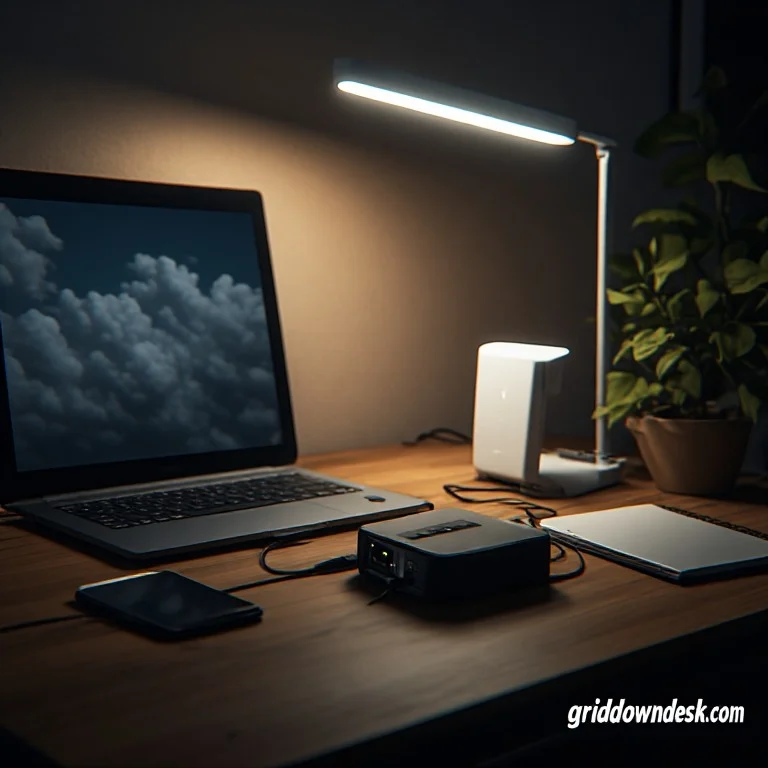
- Position the lamp correctly: Place the battery-powered lamp to the side of your monitor, shining onto your keyboard and documents. Never point it directly into your eyes or allow it to reflect off the screen, which creates glare.
- Use dark mode: Switch your operating system and applications to dark mode. This reduces overall screen glare and slightly lowers power consumption on OLED or AMOLED displays.
- Follow the 20-20-20 rule: Every 20 minutes, look at something 20 feet away for 20 seconds. This is especially critical when your visual environment is limited to a small, bright screen in a dark room.
- Maintain posture: Do not hunch over your laptop to get closer to the small light source. Use a laptop stand or external keyboard to keep the screen at eye level, even in low light.
Power management workflow
Hardware is only half the battle. Adjusting your workflow before and during an outage is equally critical to extend your battery life:
- Enable offline modes: Ensure your primary tools (Google Docs, Microsoft Office, email clients) are configured to work offline and sync automatically when the connection returns.
- Save locally first: During an outage, save your work to your local SSD rather than a cloud-synced folder. This prevents constant, failed sync attempts that drain your laptop battery.
- Lower screen brightness: Reducing your laptop and phone screen brightness to 50% or lower can extend battery life by 20-30%.
- Manage communication expectations: If you know an outage is scheduled, notify your team in advance. If it is sudden, send a quick message via your phone's mobile data before the router battery depletes.
What NOT to do during a blackout
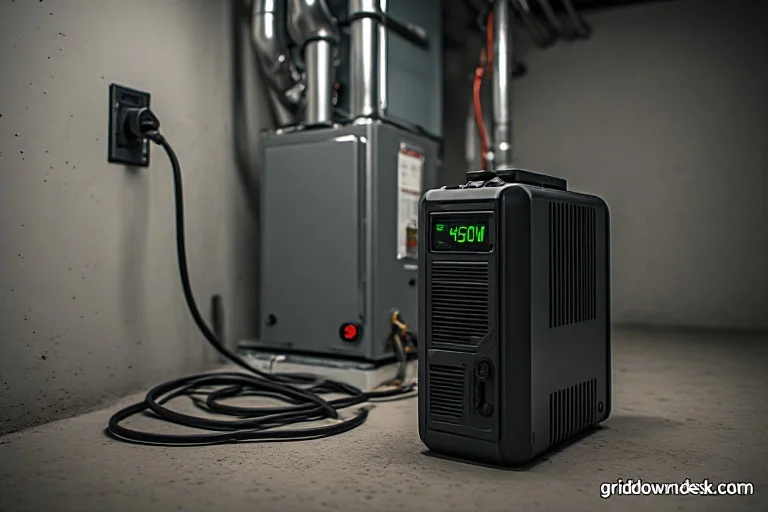
- Do not plug a laser printer into your UPS or power station. The fuser in a laser printer draws a massive surge of power (500-1000W) when heating up, which will instantly overload and shut down most portable backup systems.
- Do not ignore battery health. A laptop battery that only holds a charge for 30 minutes is a liability. If your battery health is degraded, replace it before the next storm season.
- Do not run extension cords across walkways. In the dark, tripping over a hastily deployed extension cord is a real safety hazard. Keep your blackout workspace consolidated on a single desk.
FAQ
Can I use my smartphone as a Wi-Fi hotspot during an outage? Yes, but be mindful of your mobile data cap and battery drain. Tethering consumes significant power. Keep your phone plugged into a power bank while using it as a hotspot, and limit bandwidth-heavy activities like video calls.
How do I know if my laptop battery is healthy enough for an outage? On Windows, open Command Prompt and type powercfg /batteryreport. On macOS, go to System Settings > Battery > Battery Health. If your maximum capacity is below 80%, consider replacing the battery.
Is it safe to use a portable power station indoors for a home office? Yes, portable power stations with LiFePO4 or NMC lithium batteries are completely safe for indoor use. They do not emit carbon monoxide or fumes, unlike gas-powered generators, which must never be used indoors.
What if the power outage lasts longer than my battery backup? Prioritize your tasks. Save all critical work, shut down non-essential devices, and use your remaining phone battery to communicate with your employer about the situation. Do not drain your devices to 0%, as this can damage the batteries and leave you completely disconnected.