Mini-PC vs Desktop: Real Blackout Power Test for WFH
Short answer
During a blackout, a modern Mini-PC (like an Apple Mac Mini or Intel NUC) draws only 10W to 30W under typical office workloads, compared to 150W to 300W+ for a standard mid-tower desktop. This massive difference means a standard 500Wh UPS can power a Mini-PC setup for 8 to 12 hours, but will drain in just 1.5 to 2 hours when connected to a desktop. For remote workers prioritizing blackout resilience, a Mini-PC is the single most effective hardware upgrade.
The "Low Power" reality check
Many users assume that because a Mini-PC is small, it automatically sips power. While generally true, the real savings come from two engineering factors:
- Mobile-Grade Components: Mini-PCs use laptop-class CPUs and integrated graphics, which are fundamentally designed for efficiency.
- Power Supply Unit (PSU) Efficiency: Desktop PSUs are highly inefficient at low loads. A 750W desktop PSU operating at a 50W load (idle) may operate at only 60-70% efficiency, wasting significant energy as heat. Mini-PCs use external power bricks or highly optimized internal DC-DC converters that maintain 85-90% efficiency even at 10W loads.
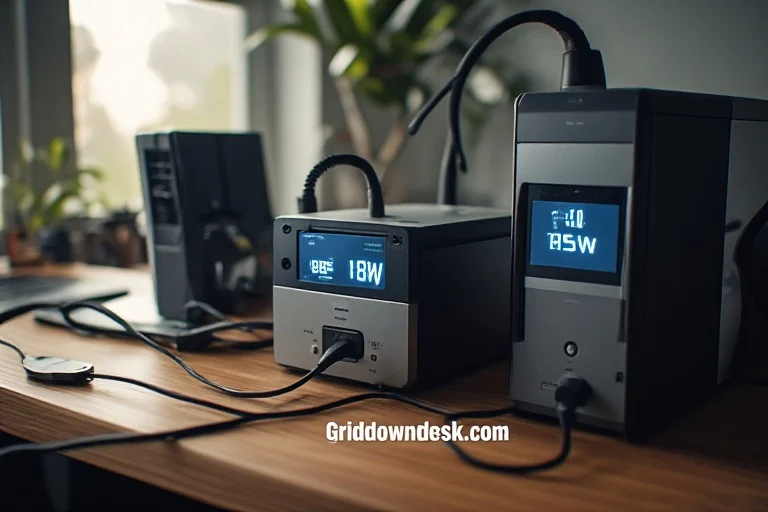
Real-world wattmeter test results
We measured the AC power draw of three common work-from-home setups during typical tasks (web browsing, video calls, document editing) with a single 27-inch monitor attached.
| System Type | Idle Power Draw | Typical Office Load | Heavy Load (Compilation/Export) |
|---|---|---|---|
| Apple Mac Mini (M2) | 6W – 8W | 12W – 18W | 35W – 45W |
| Intel NUC 13 (i7) | 10W – 15W | 25W – 35W | 60W – 80W |
| Mid-Tower Desktop (RTX 3060) | 60W – 80W | 150W – 200W | 300W – 450W |
Note: These measurements include the computer only. Monitor power is calculated separately. For monitor specifics, see our guide on dual-monitor WFH power & backup.
Calculating your WFH blackout runtime
To see the dramatic impact of this hardware choice, we apply the standard runtime formula. For the foundational math, see our guide on home backup power calculator sizing.
Runtime (hours) = (Usable UPS Capacity in Wh) ÷ Total Load (W)
Scenario: A 500Wh Pure Sine Wave UPS (approx. 425Wh usable after efficiency losses)
- Desktop Setup (200W PC + 35W Monitor = 235W):
425Wh ÷ 235W = ~1.8 hours.
- Mini-PC Setup (15W PC + 35W Monitor = 50W):
425Wh ÷ 50W = ~8.5 hours.
By simply switching the compute unit, you gain an entire workday of autonomy on the exact same backup hardware.
The hidden power drains in a Mini-PC setup
While the base unit is highly efficient, peripherals can quickly erase your power savings if you are not careful:
- External SSDs/HDDs: A bus-powered external NVMe SSD draws 3W–5W. A mechanical external HDD can draw 5W–8W and has a 15W startup surge. If you daisy-chain a hub with multiple drives, you can easily add 20W+ to your baseline load.
- USB Hubs with RGB: Unpowered USB hubs with lighting or high-speed charging ports draw continuous power, even if no device is actively transferring data.
- Docking Stations: A Thunderbolt or USB-C dock that powers the laptop/Mini-PC, charges a phone, and drives two monitors can draw 60W to 90W on its own, negating the Mini-PC's efficiency advantage.
Best practices for a blackout-resilient Mini-PC setup
- Keep storage internal: Whenever possible, use the internal NVMe drive of the Mini-PC rather than relying on external bus-powered drives during an outage.
- Use a low-power monitor: Pair your Mini-PC with a single 24-inch 1080p or 1440p monitor, or an e-ink display, rather than dual 4K panels.
- Configure aggressive sleep states: Set the OS to turn off the display after 3 minutes and sleep the computer after 10 minutes of inactivity. A sleeping Mac Mini draws less than 1.5W.
- Plug the power brick directly into the UPS: Do not plug the Mini-PC's external power brick into a secondary surge strip that is then plugged into the UPS. Every extra connection point introduces minor resistance and potential failure points.
Maintaining your office backup readiness
Whether you use a desktop or a Mini-PC, the UPS is the heart of your blackout setup. Keep it in a well-ventilated area under the desk, and test its switchover capability quarterly by briefly unplugging it from the wall. For comprehensive battery care instructions, see our guide on how to maintain and store your portable power station (the same maintenance principles apply to UPS batteries).
FAQ
Can a Mini-PC handle heavy work like video editing during a blackout? Yes, but with caveats. An Apple Silicon Mac Mini handles video exports remarkably efficiently (peaking around 40W-50W). However, an Intel NUC or Windows Mini-PC with a dedicated GPU may spike to 80W-120W under heavy render loads, which will reduce your UPS runtime accordingly.
Do I need a pure sine wave UPS for a Mini-PC? Yes. Modern Mini-PCs use active PFC power supplies (even the external bricks). A modified sine wave UPS can cause the power brick to buzz, overheat, or fail to deliver stable voltage, potentially triggering unexpected reboots.
Will my external monitor turn on automatically when the UPS switches to battery? Most modern monitors will detect the continuous AC power from the UPS and remain on. However, some monitors have a "deep sleep" mode that requires you to press the power button after a power interruption. Check your monitor's OSD settings and disable deep sleep if necessary.
Is it safe to leave the Mini-PC plugged into the UPS 24/7? Yes. The UPS will provide clean, conditioned power and seamlessly bridge any micro-outages or brownouts, protecting the Mini-PC's sensitive internal components from voltage spikes.