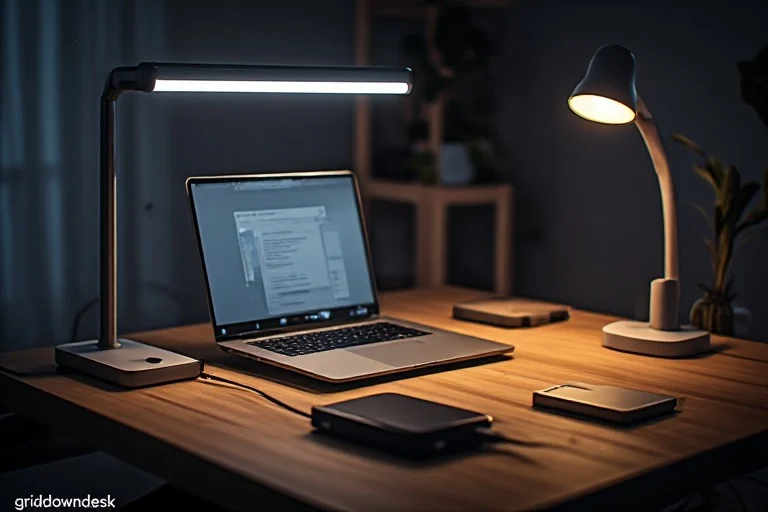
Low-Power Home Office Blackout Setup Guide
Short answer
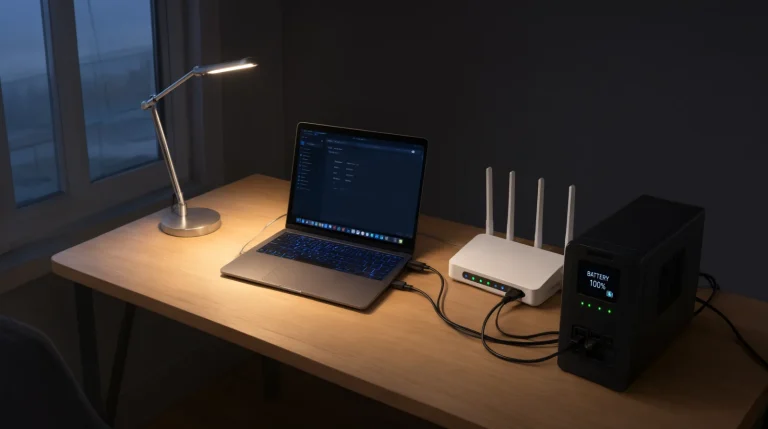
To work seamlessly through a power outage, design your home office to draw under 100W total. By combining a modern laptop (30W–50W), a single low-power or e-ink monitor (10W–15W), efficient LED task lighting (5W), and a dedicated mini UPS for your router (10W), a standard 500Wh line-interactive UPS can provide 4 to 6 hours of uninterrupted, comfortable productivity without needing a massive, expensive power station.
The "Phantom Load" reality in home offices
The biggest threat to blackout productivity is not the lack of a giant generator; it is poor workspace design. A typical desktop setup with dual 4K monitors, a high-wattage GPU, an always-on desktop PC, and multiple USB hubs can easily draw 300W to 500W at idle.
This "phantom load" drains backup batteries in under an hour. The goal of a blackout-ready office is not to replicate your maximum-performance setup, but to create a highly optimized, low-wattage "lifeboat" configuration that keeps you connected and productive until the grid returns.
Real-world low-power workspace breakdown
By making intentional hardware choices, you can drastically reduce your baseline power draw without sacrificing ergonomics or comfort.
Typical power consumption (Optimized Setup):
- Modern Laptop (M-series or efficient Intel/AMD): 30W – 50W (under typical office load).
- Single Low-Power / E-Ink Monitor: 10W – 15W (vs. 40W+ for a standard 27" 4K IPS display).
- LED Bias Lighting / Task Lamp: 5W – 8W (provides ample visibility without lighting the whole room).
- Wi-Fi Router (on dedicated mini UPS): 8W – 12W.
- Smartphone Charging: 10W – 15W.
- Total Optimized Load: ~65W to 90W continuous.
For a detailed guide on measuring your exact device wattage with a kill-a-watt meter, see our article on how to calculate your home office power needs.
Calculating your blackout workspace runtime
Using the standard runtime formula, we can see the dramatic difference between a standard and an optimized setup. For the foundational math, see our guide on home backup power calculator sizing.
Runtime (hours) = (UPS Usable Capacity in Wh × 0.85) ÷ Total Load (W)
Scenario: A 500Wh Pure Sine Wave UPS (approx. 425Wh usable)
- Standard Desktop Setup (300W load): 425Wh ÷ 300W = ~1.4 hours.
- Optimized Low-Power Setup (70W load): 425Wh ÷ 70W = ~6 hours.
By simply switching from a desktop to a laptop and using a single efficient monitor, you quadruple your working time on the exact same backup hardware.
Best practices for blackout office design
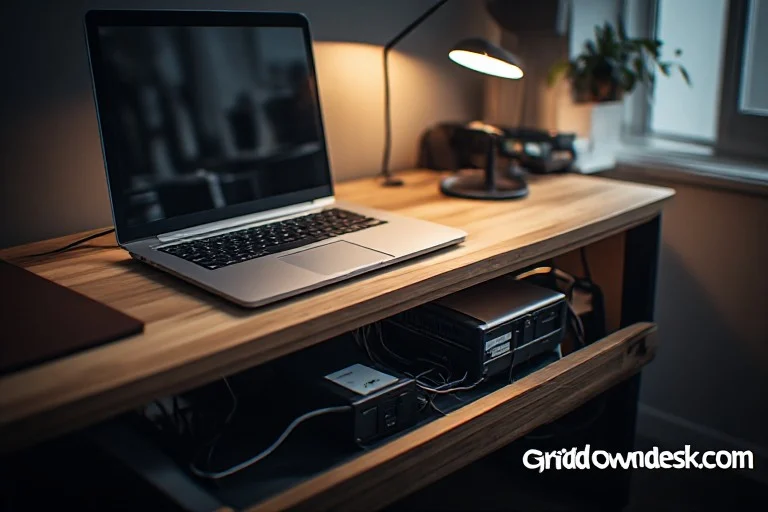
- Centralize and Label Your Cables: During an outage, fumbling in the dark to find the right plug wastes critical battery life. Use velcro ties and clear labels to group your "critical" devices (laptop, primary monitor, router) into a single, easily accessible power strip connected to the UPS.
- Use Smart Power Strips: A smart strip can automatically cut power to "peripheral" outlets (like desktop speakers or a secondary monitor) when the main device (your laptop) goes to sleep, eliminating phantom drain on your backup battery.
- Invest in Localized Lighting: Do not rely on overhead room lighting. A dedicated, low-wattage LED desk lamp or monitor bias lighting provides better ergonomics for screen work while consuming a fraction of the power of a ceiling fixture.
- Pre-configure OS Power Profiles: As detailed in our guide on how to extend laptop battery life during a blackout, ensure your laptop is set to "Best Power Efficiency" and external displays are set to 60Hz before the outage even occurs.
Maintaining your office backup readiness
The UPS is the heart of your blackout office, but its lead-acid or lithium battery will degrade if neglected. Keep the unit in a well-ventilated space under the desk, away from direct heat sources. Test the switchover by unplugging it from the wall once a quarter. For comprehensive battery care instructions, see our guide on how to maintain and store your portable power station (the same maintenance principles apply to UPS batteries).
FAQ
Is an e-ink monitor really worth it for a home office? For text-heavy work (coding, writing, reading documentation), yes. E-ink monitors draw only 2W-5W and are perfectly readable in ambient light, eliminating the need for a backlight. For video editing or fast-paced design work, a standard low-power IPS panel is a better compromise.
Can I use a portable power station instead of an under-desk UPS? Yes, but a traditional line-interactive UPS is generally superior for this specific use case. It offers a faster switchover time (under 10ms vs. 20-30ms for power stations), is easier to mount out of the way, and is more cost-effective for the 100W-400W range.
What if I need to print a document during an outage? Do not plug a laser printer into your backup UPS. The fuser heater draws 500W–1000W+ and will instantly trip the overload protection. Plug the printer into a standard wall outlet or a non-backed-up surge strip, and only use it if absolutely necessary, accepting that it will drain your home's main backup faster.
Does a laptop on a UPS still charge its internal battery? Yes. If the laptop is plugged into the UPS, the UPS will power the laptop and simultaneously charge its internal battery, effectively giving you the combined capacity of both the UPS and the laptop's battery for maximum runtime.