Extend Laptop Battery Life: Blackout Guide
Short answer
To maximize your laptop's battery life during a blackout, immediately reduce screen brightness to 40%, switch to the OS "Best Power Efficiency" mode, disable keyboard backlighting, and unplug all non-essential USB peripherals. These combined actions can extend your runtime by 30% to 50%, turning a 2-hour battery into a 3+ hour lifeline for critical work.
The battery drain reality: Myths vs. Facts
When the power goes out, panic often leads to counterproductive "battery-saving" habits. Let's separate fact from fiction based on hardware engineering.
- Myth: Closing background apps saves massive amounts of battery.
Fact: Modern OS schedulers (Windows 11, macOS Sonoma) already put idle apps to sleep. Force-quitting and reopening them later uses more CPU cycles and battery than letting the OS manage them.
- Myth: Closing the laptop lid and using an external monitor saves power.
Fact: If the external monitor is also unplugged, this is irrelevant. If you are using a laptop as a desktop with the lid closed, the laptop's internal thermal management often works harder, and you still drain the battery to power the logic board.
- Fact: The display and the CPU under load are the two largest power consumers, accounting for 60-70% of total battery drain. Targeting these two areas yields the highest return on investment.
Real-world power saving settings (Do this immediately)
When the grid fails, execute this 60-second checklist to instantly reduce your wattage draw.
For Windows:
- Battery Saver Mode: Click the battery icon in the taskbar and slide the power mode to "Best power efficiency".
- Screen Brightness: Manually reduce brightness to 40% or the lowest comfortable level. (Each 10% reduction saves measurable power).
- Refresh Rate: If your laptop has a 120Hz or 144Hz display, go to Settings > System > Display > Advanced display and drop it to 60Hz. This alone can save 1-2 Watts continuously.
- Keyboard Backlight: Turn it off completely (usually
Fn+SpaceorF5).
For macOS:
- Low Power Mode: Go to System Settings > Battery and set "Low Power Mode" to "Only on Battery". This throttles the CPU and reduces display brightness automatically.
- Screen Brightness: Reduce via the Control Center or F1 key.
- Automatic Graphics Switching: Ensure "Automatic graphics switching" is enabled in Battery settings to force the Mac to use the efficient integrated GPU instead of the power-hungry discrete GPU.
Hardware tweaks that actually matter
Software settings only go so far. Physical disconnections provide immediate, guaranteed power savings.
- Unplug USB peripherals: External hard drives, USB hubs, and even wired gaming mice draw continuous power from the laptop's bus. Unplug them if not actively needed.
- Disconnect external monitors: Driving a 4K external display forces the laptop's GPU to work significantly harder. During an outage, work solely on the native laptop screen.
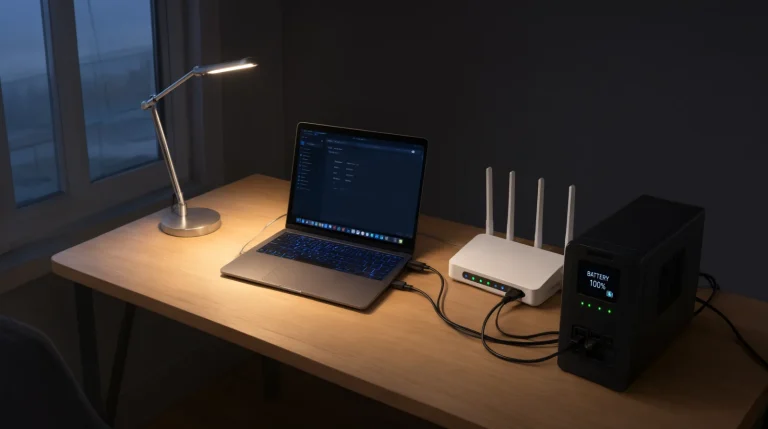
- Use a wired connection (if possible): Wi-Fi radios consume more power searching for and maintaining a signal than a wired Ethernet connection. If your router is on a mini UPS, plug your laptop directly into it via Ethernet.
For a broader strategy on setting up your entire desk for autonomy, refer to our guide on home office blackout survival kit.
What NOT to do during a blackout
- Do not put the laptop in the freezer. This is a dangerous internet myth. Condensation will form inside the chassis when you take it out, causing a short circuit and permanent motherboard damage.
- Do not use "Battery Calibrator" apps during an outage. These apps intentionally drain the battery to 0% to "recalibrate" the sensor. Doing this during a blackout defeats the entire purpose of having backup power.
- Do not run heavy background tasks. Pause large cloud backups (OneDrive, Google Drive), Windows updates, or video rendering until grid power is restored.
Calculating your total setup load
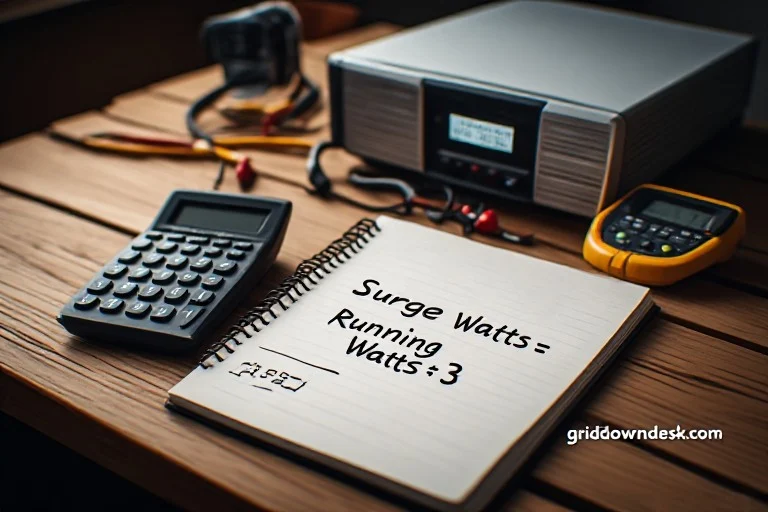
If you are pairing your laptop with external battery backups (like a mini UPS for your router), you need to know the total wattage of your setup to size your gear correctly. For a detailed breakdown of measurement methods, see our article on how to calculate your home office power needs.
FAQ
Does "Battery Saver" mode noticeably slow down my laptop? For web browsing, writing documents, and video calls, the performance difference is imperceptible. The OS simply prevents background tasks from waking the CPU and caps the maximum processor state. You will only notice a difference in heavy tasks like video editing or gaming.
Will a laptop cooling pad save battery during an outage? No. A cooling pad draws power from the laptop's USB port (usually 2W-5W). While it might lower temperatures slightly, the power it consumes outweighs any minor efficiency gains from a cooler CPU, resulting in a net loss of battery life.
Is it better to hibernate or sleep the laptop between tasks? Hibernate. Sleep mode keeps the RAM powered, drawing 1W-3W continuously. Hibernate writes the RAM contents to the SSD and completely cuts power to the motherboard, drawing 0W. For a blackout, hibernate whenever you step away for more than 15 minutes.
Can I replace my laptop battery myself to prepare for storm season? On many modern ultrabooks, the battery is glued or tightly integrated, making DIY replacement risky. If your battery health is below 80% (checkable via powercfg /batteryreport on Windows or System Settings on macOS), it is safer and more reliable to have it professionally replaced before the next storm season.