Home Office Blackout Survival Kit: Essential Gear for Remote Workers
Short answer
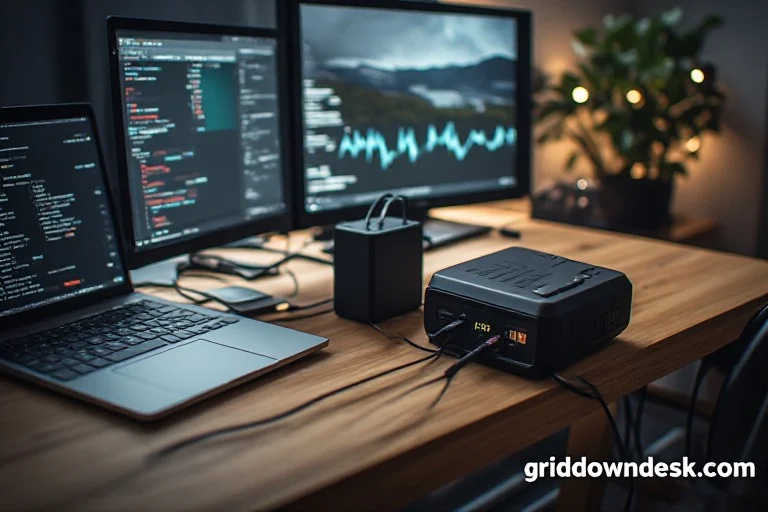
To maintain productivity during a power outage, a remote worker needs four core items: a laptop with a healthy battery, a 12V mini UPS for the Wi-Fi router, a battery-powered LED desk lamp, and a high-capacity power bank for a smartphone. Combined with offline software workflows, this setup ensures 4 to 8 hours of uninterrupted work without grid power.
Why remote workers need a dedicated blackout plan
Working from home means your office is subject to the same grid vulnerabilities as your living room. A sudden power outage does not just mean a dark room; it means lost internet, dead devices, and missed deadlines.
Relying on a single desktop computer and a standard wall-powered router is a critical point of failure. Preparing a dedicated "blackout survival kit" transforms a stressful grid failure into a minor, manageable inconvenience, allowing you to continue working or safely wrap up your tasks.
The 4 essential pieces of hardware
1. A Laptop (Not a Desktop)
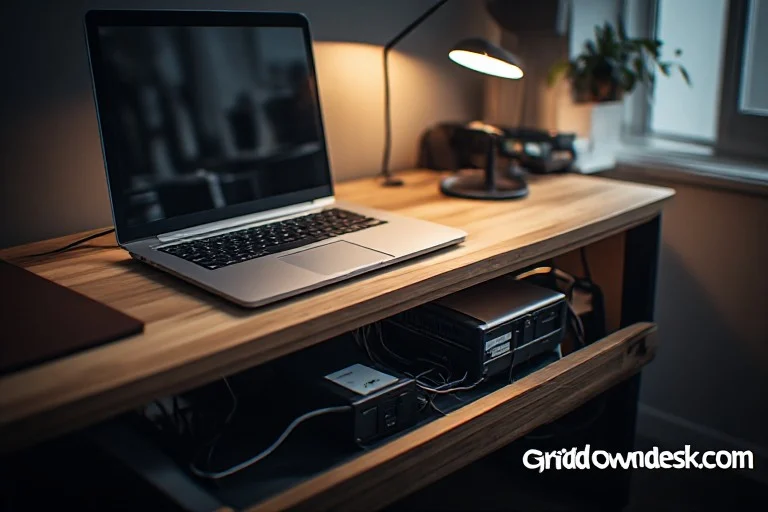
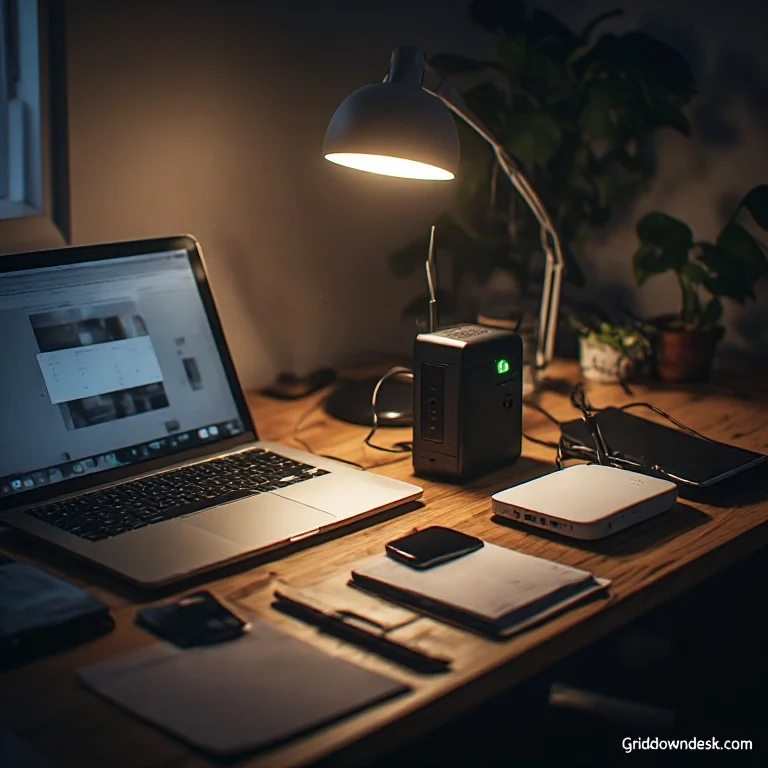
A laptop is the cornerstone of blackout productivity. Its built-in battery provides 2 to 6 hours of runtime, and its low power draw (typically 30-60W) makes it easy to support with backup power. If you primarily use a desktop, consider keeping a secondary laptop charged and ready for emergencies. For help sizing backup power, see our guide on how to calculate your home office power needs.
2. A 12V Mini UPS for the Router
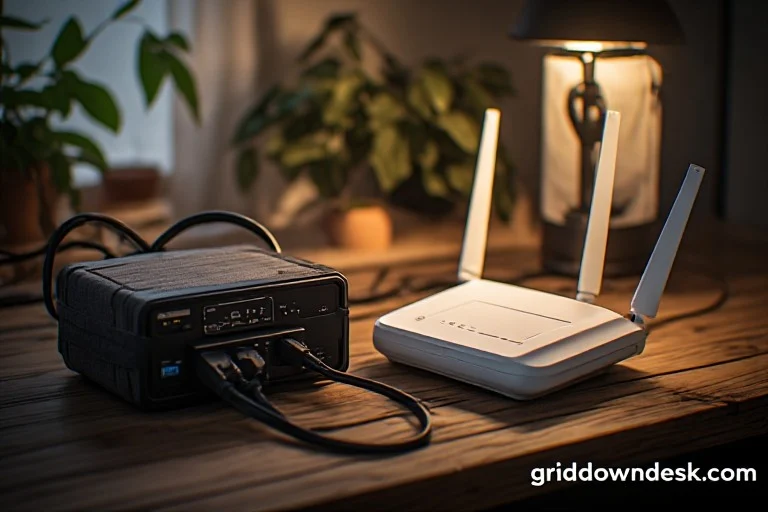
If your laptop is running but your router is dead, you have no internet. A standard home UPS is overkill and inefficient for this task. A dedicated 12V mini UPS connects directly to your router's DC port, bypassing the energy-wasting AC inverter. A 10,000 mAh to 20,000 mAh mini UPS will keep a standard router alive for 3 to 6 hours. Learn more in our guide on keeping Wi-Fi on during a blackout.
3. Battery-Powered LED Desk Lamp
Relying solely on your laptop screen in a dark room causes severe eye strain and headaches within an hour. A rechargeable LED desk lamp with adjustable color temperature provides essential ambient and task lighting. Look for models with a built-in battery that can also function as a power bank to charge your phone in a pinch.
4. High-Capacity Power Bank (20,000 mAh+)
Your smartphone is your primary communication tool during an outage (hotspot, calls, messaging). A 20,000 mAh power bank can fully charge a modern smartphone 3 to 4 times, ensuring you stay connected to your team and family.
Software and workflow adjustments
Hardware is only half the battle. Adjusting your workflow before and during an outage is equally critical.
- Enable offline modes: Ensure your primary tools (Google Docs, Microsoft Office, Slack, email clients) are configured to work offline and sync automatically when the connection returns.
- Save locally first: During an outage, save your work to your local SSD rather than a cloud-synced folder. This prevents constant, failed sync attempts that drain your laptop battery.
- Manage communication expectations: If you know an outage is scheduled, notify your team in advance. If it is sudden, send a quick message via your phone's mobile data before the router battery depletes.
- Lower screen brightness: Reducing your laptop and phone screen brightness to 50% or lower can extend battery life by 20-30%.
Ergonomics in low-light conditions
Working in suboptimal lighting is a common cause of fatigue during blackouts. To protect your health:
- Position the lamp correctly: Place the battery-powered lamp to the side of your monitor, shining onto your keyboard and documents, not directly into your eyes or reflecting off the screen.
- Use dark mode: Switch your operating system and applications to dark mode. This reduces overall screen glare and slightly lowers power consumption on OLED or AMOLED displays.
- Follow the 20-20-20 rule: Every 20 minutes, look at something 20 feet away for 20 seconds. This is especially important when your visual environment is limited to a small, bright screen in a dark room.
What NOT to do during a blackout
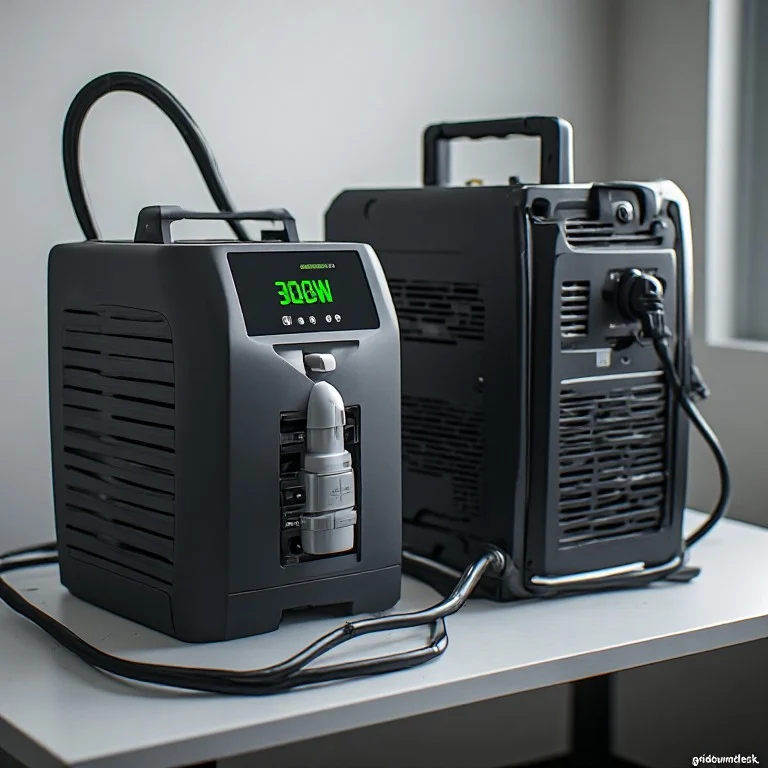
- Do not plug a laser printer into your UPS or power station. The fuser in a laser printer draws a massive surge of power (500-1000W) when heating up, which will instantly overload and shut down most portable backup systems.
- Do not ignore battery health. A laptop battery that only holds a charge for 30 minutes is a liability. If your battery health is degraded, replace it before the next storm season.
- Do not run extension cords across walkways. In the dark, tripping over a hastily deployed extension cord is a real safety hazard. Keep your blackout workspace consolidated on a single desk.
FAQ
Can I use my smartphone as a Wi-Fi hotspot during an outage? Yes, but be mindful of your mobile data cap and battery drain. Tethering consumes significant power. Keep your phone plugged into a power bank while using it as a hotspot, and limit bandwidth-heavy activities like video calls.
How do I know if my laptop battery is healthy enough for an outage? On Windows, open Command Prompt and type powercfg /batteryreport. On macOS, go to System Settings > Battery > Battery Health. If your maximum capacity is below 80%, consider replacing the battery.
Is it safe to use a portable power station indoors for a home office? Yes, portable power stations with LiFePO4 or NMC lithium batteries are completely safe for indoor use. They do not emit carbon monoxide or fumes, unlike gas-powered generators, which must never be used indoors.
What if the power outage lasts longer than my battery backup? Prioritize your tasks. Save all critical work, shut down non-essential devices, and use your remaining phone battery to communicate with your employer about the situation. Do not drain your devices to 0%, as this can damage the batteries and leave you completely disconnected.