Dual Monitor & Laptop Blackout Power Guide
Short answer
To maximize runtime when powering a laptop and dual monitors during a blackout, prioritize monitor matrix type and connection method. A modern OLED or efficient IPS monitor draws 20W–30W, while older or high-brightness VA panels can draw 40W–60W each. By connecting monitors via USB-C Power Delivery (where supported) and reducing brightness to 40%, a standard 500Wh portable power station can sustain a dual-screen workflow for 5 to 7 hours, compared to just 2.5 hours if using inefficient AC adapters at full brightness.
The "Hidden Monitor Drain" reality
When setting up a backup power scenario, most users focus entirely on the laptop's battery life. However, in a multi-display setup, the external monitors are often the primary power drain.
A typical 27-inch 4K monitor draws significantly more power than a modern ultrabook under light office loads. Furthermore, the type of backlight technology (IPS, VA, or OLED) drastically affects energy consumption. Ignoring this factor leads to the common frustration of a "fully charged" power station dying in under two hours, cutting off a critical work session.
Real-world monitor power consumption
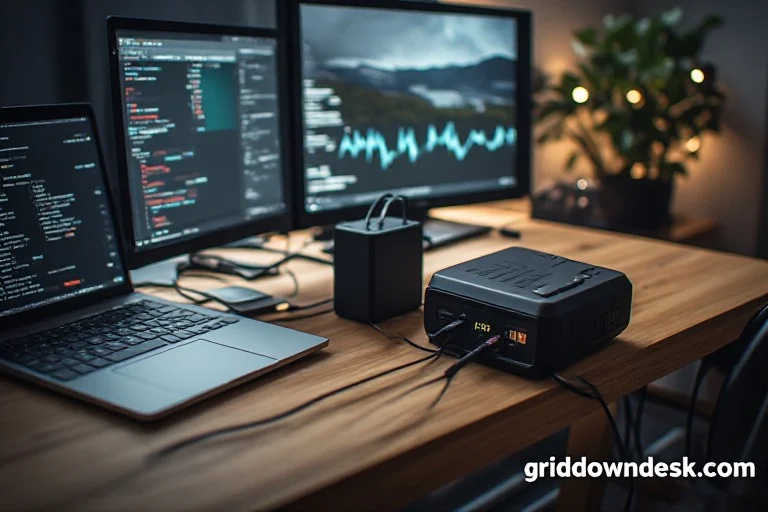
We measured the actual AC and DC power draw of common 27-inch monitor configurations at 50% brightness (the recommended level for balanced eye comfort and energy saving).
| Monitor Type & Resolution | Connection Method | Measured Power Draw (50% Brightness) | Measured Power Draw (100% Brightness) |
|---|---|---|---|
| 27" 4K IPS (Standard) | AC Adapter | 35W – 45W | 55W – 65W |
| 27" 4K VA (High Contrast) | AC Adapter | 40W – 55W | 60W – 75W |
| 27" 4K OLED | AC Adapter | 20W – 30W* | 40W – 50W* |
| 24" 1080p IPS (Efficient) | USB-C PD (from laptop/station) | 15W – 20W | 25W – 30W |
*Note: OLED power draw is highly content-dependent. Dark mode interfaces consume significantly less power than bright white documents, making OLED exceptionally efficient for coding or writing tasks.
Calculating your multi-display runtime
To accurately predict your workflow duration, we must sum the continuous load of all devices. For the foundational math, see our guide on home backup power calculator sizing.
Runtime (hours) = (Usable Battery Wh) ÷ Total Continuous Load (W)
Example Calculation (Optimized Setup):
- Laptop (efficient workload): 25W
- Monitor 1 (24" 1080p via USB-C): 18W
- Monitor 2 (27" 4K IPS at 40% brightness): 30W
- Total Load: 73W
- Power source: 500Wh portable power station.
- Usable energy (at 85% inverter/DC efficiency): 500 Wh × 0.85 = 425 Wh.
- Runtime: 425 Wh ÷ 73W = ~5.8 hours.
If the same setup used AC adapters for both monitors at 100% brightness, the total load would jump to ~135W, slashing the runtime to just ~3.1 hours.
Best practices for multi-display backup
- Prioritize USB-C PD Connections: If your monitors and laptop support USB-C with Power Delivery and DisplayPort Alt Mode, use a single USB-C cable from the power station (or laptop) to the primary monitor, and daisy-chain the second monitor if supported. This eliminates two bulky AC power bricks and their associated 10-15% conversion losses.
- Aggressive Brightness Management: The relationship between LED backlight brightness and power draw is nearly linear. Dropping brightness from 100% to 40% can reduce monitor power consumption by up to 40% with minimal impact on readability in a dim, blackout environment.
- Enable Dark Mode System-Wide: If using an OLED monitor, enabling OS-level dark mode can reduce the display's power draw by 30-50% compared to light mode, as black pixels are completely turned off.
- Turn Off the Secondary Display: If the outage is prolonged and tasks are simple, physically turn off the secondary monitor. This single action instantly reclaims 20W–40W of continuous capacity, extending your total runtime by 1 to 2 hours.
Maintaining your display setup
Monitor power supplies (both internal and external bricks) can overheat if placed in enclosed spaces or covered by papers, degrading their efficiency and lifespan. Ensure adequate airflow around all power adapters. For comprehensive battery care instructions to keep your power station ready for the next outage, see our guide on how to maintain and store your portable power station.
FAQ
Can I power a 4K 144Hz gaming monitor from a portable power station? Yes, but be aware that high-refresh-rate 4K monitors often draw 60W–90W continuously. For blackout scenarios, it is highly recommended to switch the monitor's refresh rate to 60Hz in the OS display settings, which can reduce power consumption by 15%–20%.
Does daisy-chaining monitors via USB-C increase power draw? The primary monitor will draw slightly more power from the source to pass through the video signal and potentially charge the laptop, but it is still vastly more efficient than using two separate AC wall adapters. Check your primary monitor's specs for "USB-C Power Passthrough" wattage limits.
Will my monitors remember their brightness settings after a power cycle? Most modern monitors do. However, some models have an "Eco" or "Auto Brightness" sensor that may reset or behave erratically on battery power. It is best to disable ambient light sensors in the monitor's OSD (On-Screen Display) menu before an outage occurs.
Can I use a DC-to-DC monitor power cable? Yes, if your monitor uses an external power brick. You can replace the brick with a specialized 12V/19V/24V DC-to-DC cable (matching the monitor's exact voltage and polarity requirements) plugged directly into the power station's 12V car port. This is the absolute most efficient method, bypassing the inverter entirely.