Auto-Reboot Router After Blackout: Smart Plug Guide
Short answer
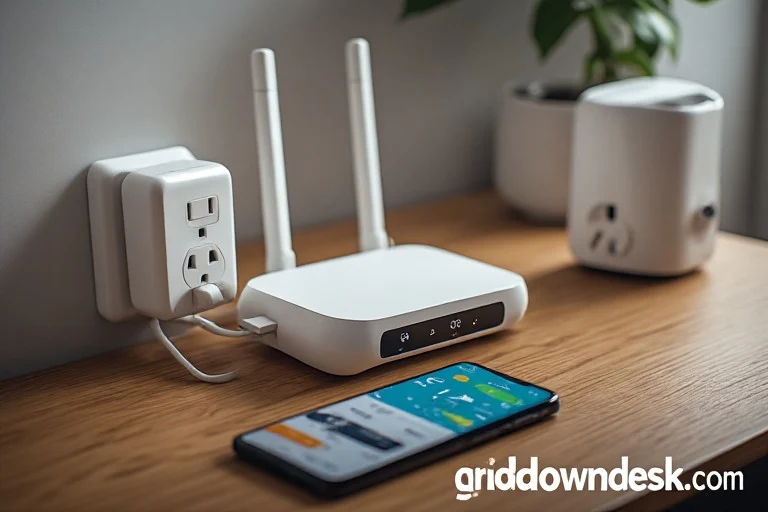
To prevent your Wi-Fi router from freezing or failing to reconnect after a power outage, plug it into a Wi-Fi-enabled smart plug. Configure a daily "reboot schedule" in the smart plug's app to turn the power off for 5 minutes at a low-traffic time (e.g., 4:00 AM). This forces a clean, cold boot of the router's hardware and clears its volatile memory, ensuring maximum stability and eliminating the need for manual resets during or after a blackout.
The "Dirty Power" router freeze
When grid power flickers, drops, and then returns (a brownout or micro-outage), a router's internal power supply may not fully shut down, but its processor can crash or enter an undefined state.
The router's LEDs might stay on, making it appear "online," but it will fail to establish a WAN connection with your ISP or broadcast a functional Wi-Fi network. Because the router is "on," simply waiting won't fix it; it requires a "cold boot" (complete loss of power for 10-30 seconds) to discharge its capacitors and force the firmware to reload from scratch. If you are away from home when this happens, your smart home and security cameras go offline indefinitely.
Real-world smart plug selection
Not all smart plugs are suitable for networking equipment. To ensure reliability during a blackout, you must choose the right hardware.
Key requirements:
- Last State Memory (Crucial): The smart plug must have a setting to "Remember Last State" or "Turn ON by default" when power is restored. If the plug defaults to "OFF" after a blackout, your router will never turn back on.
- Load Rating: Standard Wi-Fi routers draw 8W–15W. Any smart plug rated for 10A or 15A (1200W+) is more than sufficient.
- Local Execution: Prefer smart plugs that support local control (e.g., Zigbee, Z-Wave, or local Wi-Fi protocols like Matter/Thread) over cloud-only plugs, ensuring the automation runs even if your ISP's internet connection is down.
Step-by-step setup for automatic reboots
Step 1: Physical Connection Plug the smart plug into the wall outlet (or into your UPS backup circuit). Plug the router's power adapter into the smart plug.
Step 2: Configure Power-On State Open the smart plug's app. Navigate to "Device Settings" or "Power State." Set the "Relay Status after Power Loss" to ON (or "Remember Last State"). This guarantees that the moment grid power returns, the smart plug immediately feeds power to the router.
Step 3: Create the Reboot Schedule Navigate to "Automations" or "Schedules." Create a new routine:
- Action 1: Turn OFF at 04:00 AM.
- Action 2: Turn ON at 04:05 AM (a 5-minute gap ensures capacitors fully discharge).
Save and activate the schedule.
Best practices for network resilience
- Test the schedule: After setting it up, stay awake or check logs the next day to verify that the router actually rebooted and reconnected successfully without interrupting critical overnight tasks (like cloud backups).
- Combine with UPS: If your router is backed up by a UPS (as detailed in our dual WAN router blackout failover guide), plug the smart plug into the UPS's "Battery Backup" outlets. This ensures the daily reboot schedule continues to run even during short outages.
- Use for Modems and Switches: This trick works equally well for standalone cable modems, fiber ONTs, and PoE switches. You can use a single smart plug to reboot the entire networking stack simultaneously.
- Avoid "Ping" based smart plugs: Some advanced smart plugs have a "Ping Monitor" feature that automatically reboots the outlet if a specific IP address (like 8.8.8.8) stops responding. While powerful, this can cause infinite reboot loops if your ISP experiences an extended outage. A simple time-based schedule is safer.
Maintaining your automation readiness
Smart plugs are generally maintenance-free, but their internal Wi-Fi radios can occasionally disconnect from the network. Ensure the smart plug has a strong Wi-Fi signal. If your router reboots, give the smart plug 2-3 minutes to reconnect to the network before expecting it to execute complex automations. For comprehensive smart home backup strategies, see our guide on smart home hub and sensor backup.
FAQ
Will a daily reboot wear out my router? No. Modern routers are essentially small Linux computers designed for 24/7 operation, but their firmware can develop memory leaks over weeks of uptime. A daily reboot actually extends the hardware's functional lifespan by preventing thermal throttling from runaway processes and clearing corrupted cache states.
What if the smart plug loses Wi-Fi connection during a reboot? If the smart plug relies on cloud servers to execute the schedule, and your internet is down, the reboot might fail. This is why "Local Execution" (via a local hub or Matter protocol) is highly recommended for critical network infrastructure.
Can I use a mechanical outlet timer instead of a smart plug? Yes, a cheap mechanical 24-hour dial timer works perfectly and requires zero Wi-Fi connection. However, they consume a small amount of phantom power (1W-2W) for the motor and are physically bulkier than modern smart plugs.
How long should the "OFF" period be? Always allow at least 10 to 30 seconds, but 5 minutes is the safest bet. This ensures all internal capacitors in the router's power supply and motherboard are fully discharged, forcing a true cold boot rather than a warm restart.